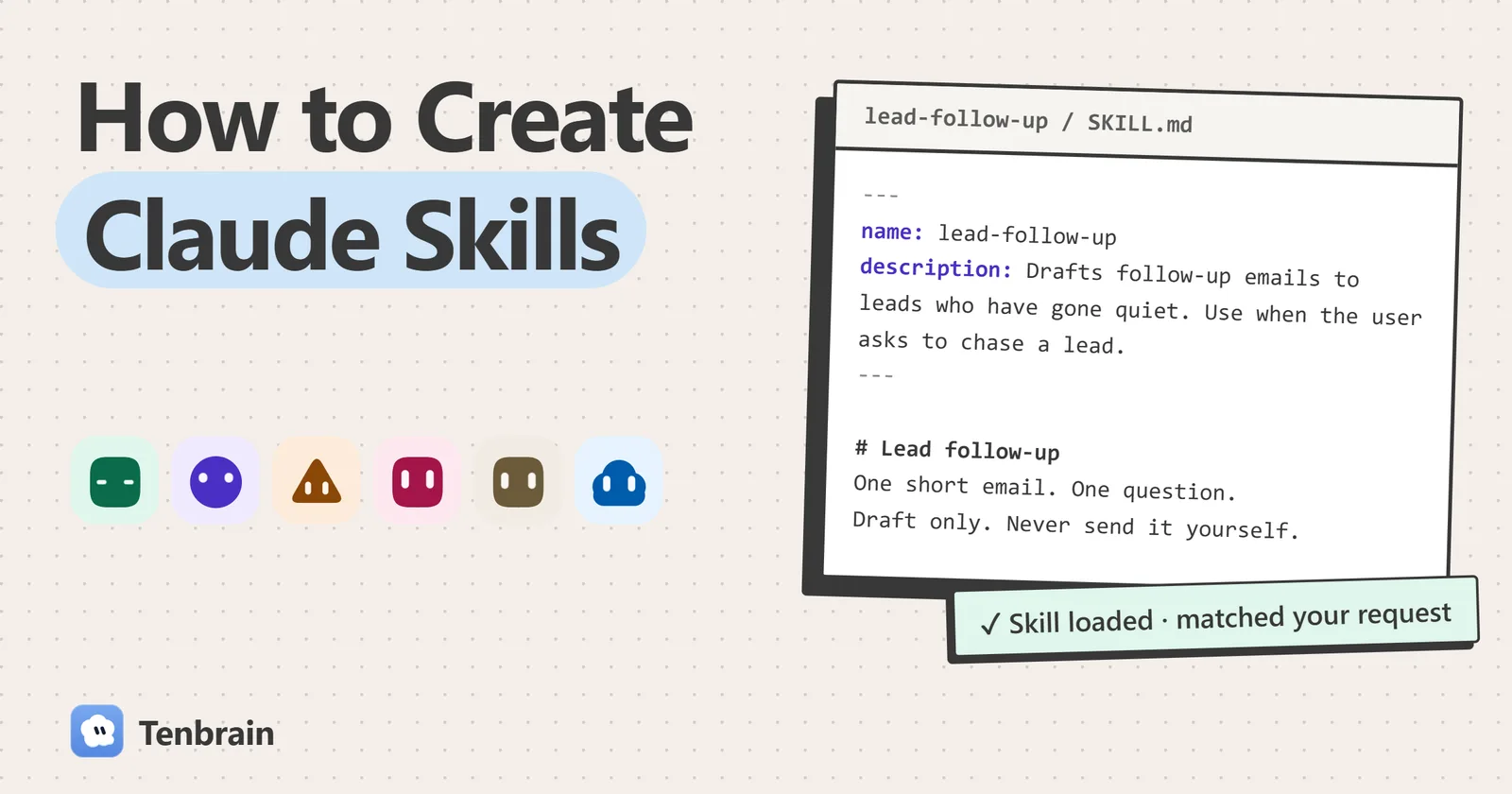
Learning how to create Claude skills takes less time than most people expect, because a working skill is one folder and one markdown file. The hard part isn’t the format. It’s writing a description Claude can match to a real request, and instructions that hold up when the request is messy.
So this guide spends its time there. You’ll learn how to build your first Claude skill from scratch, see the complete file, install it wherever you use Claude, and test whether it actually does the job. Everything here was checked against the official docs, and where those docs disagree, we tell you.
Key takeaways
- A skill is a folder with a SKILL.md file. Everything else in it is optional.
- The description decides whether the skill loads, so write it first and write it carefully.
- Keep the body under 500 lines, and move long material into separate files.
- Test with fresh sessions: once for whether it triggers, once for whether the output improves.
What Is a Claude Skill?
A Claude skill is a folder of instructions that Claude loads when a task matches it. Think of it as a written procedure for one workflow: how you want meeting notes done, how a code review should run, or what a good proposal looks like. You write it once, and you stop pasting the same long prompt into every conversation.
A skill is a folder first and a file second. The one file it must contain is SKILL.md, a markdown file that opens with a short block of YAML frontmatter, followed by the instructions. Here is the full file structure:
lead-follow-up/The skill folder. Its name must match the skill name.
├── SKILL.mdThe only required file: when to use the skill, then how to do the job.
Required├── references/Longer docs that Claude reads only when it needs them.
Optional├── scripts/Code Claude can run. Only the output enters the conversation.
Optional└── assets/Templates and other files the skill uses.
Optional
How Skills Work: What Claude Loads and When
Skills are the mechanism that lets Claude know many procedures without reading them all. It works in stages, which the docs call progressive disclosure. At startup, Claude reads only the name and description of each skill. When your request fits one, the skill loads, and only then does Claude read the body.
- StartupReads every name and description
- You askA request in plain words
- MatchDecides whether to load it
- LoadReads the SKILL.md body
- ExtrasOpens other files if needed
That design is why you can install many skills without slowing every conversation down, and it’s also why a badly written description is so costly. Here are the numbers worth knowing before you start.
Claude Skills, by the Numbers
What a skill costs in context, and when
- Name and descriptionLoaded at startup, for every skill
- SKILL.md bodyLoaded when the skill is used
- Reference files and scriptsNone until accessedNothing is loaded until Claude opens or runs one
Tokens. Agent Skills specification and platform overview; 5,000 is a recommended ceiling.
The limits to write within
- 64characters at most in a skill name
- 1,024characters at most in a description
- 500lines is the most a SKILL.md body should run
From the specification and the platform docs. Claude Code’s own listing cap is 1,536 characters.
~2,000
tokens at startup for 20 installed skills. One full SKILL.md can use more than that, which is why bodies stay out until needed.
Our arithmetic: 20 × about 100 tokens.
A young format
- October 16, 2025Agent Skills launched for the Claude apps, Claude Code and the API
- December 18, 2025The format was published as an open standard
Skills vs Prompts, Projects, MCP and Subagents
Claude has several ways to take in instructions, and they overlap enough to confuse people. The real difference is when each one loads and what it’s for.
| Tool | What it’s for | When it loads |
|---|---|---|
| Skill | How to do a repeated job | On demand, when a request matches |
| Prompt | What you want right now | Once, in that conversation |
| Project | Background knowledge for a body of work | Always, inside that project |
CLAUDE.md | Facts and rules for a codebase | At the start of every session |
| MCP | A connection to outside tools and data | Always available once connected |
| Subagent | A separate worker with its own context | When it’s invoked |
The official comparison sums up two of these neatly: Projects say here’s what you need to know, and skills say here’s how to do things. MCP connects Claude to your data, and a skill teaches Claude what to do with it. Skills provide the method and MCP provides the access, so a sales skill can tell Claude how to write the email while an MCP connection fetches the lead from your CRM.
When a Workflow Is Worth Turning Into a Skill
Before you build a skill, check that you need one. A good use case passes three tests:
- You keep repeating it. If you’ve pasted the same instructions into three conversations, that’s a skill waiting to be written.
- The workflow is stable. The input changes each time, but the way you want the work done doesn’t.
- You can describe a good result. If you can’t say what “done” looks like, Claude can’t either.
For a first skill, good choices include skills that produce reports in a fixed output format, code review against your team’s checklist, debugging steps for a known system, turning call notes into a CRM update, and drafting emails in your voice. If a request only comes up once, a plain prompt is fine. And if there’s a fact you want Claude to know in every conversation, it belongs in CLAUDE.md or a Project rather than a skill.
Keep each skill to one job. A skill that writes proposals, invoices and meeting notes has a description that fits everything and matches nothing. Three separate skills will trigger more reliably than one big one.
How to Build a Claude Skill From Scratch
Here’s the whole process in six steps, and it’s the same whether you want to create skills in Claude’s app or create custom skills for Claude Code. We’ll use a skill that drafts follow-up emails to sales leads who have gone quiet, because the job is easy to picture and easy to judge. You don’t need to write code for any of this.
Step 1: Write Down What Good Looks Like
Start with two or three real requests and the answer you’d want for each. These become your test cases later. Do this first, because the official best practices recommend creating your evaluations before you write extensive instructions. That way you solve problems you’ve actually seen rather than ones you imagine.
Step 2: Make the Folder
Make the folder where your tool will find it. In Claude Code, personal skills live in your home directory, and the skill name becomes the folder name:
Terminal
mkdir -p ~/.claude/skills/lead-follow-up/referencesUse lowercase letters, numbers and hyphens. The name can’t start or end with a hyphen, can’t contain two hyphens in a row, and tops out at 64 characters. The platform docs also reserve the words “anthropic” and “claude”, so claude-email-helper is out.
Step 3: Add the Frontmatter
Create SKILL.md inside the folder. The frontmatter sits between two lines of three dashes, and those dashes must be the very first thing in the file. The name and description are the only fields you need:
lead-follow-up/SKILL.md
---
name: lead-follow-up
description: Drafts follow-up emails to sales leads who have gone quiet. Use when the user asks to follow up, chase a lead, nudge a prospect, or write a second or third touch email.
---
If the frontmatter is malformed, the skill body still loads in Claude Code, but Claude has no description to match against. So a typo here looks like a skill that never fires. With those two fields and a few lines of instructions, you have a minimum viable skill.
Step 4: Write a Description That Actually Triggers
This is the sentence that matters most, because it’s how Claude decides whether to load your skill. A skill triggers only when this text fits the request, so it has to say what the skill does and when Claude should use it. A pattern that works is one sentence on the result, then “Use when the user asks to…” followed by the trigger phrases people really say.
“Chase the Acme lead, they went quiet last week.”
description: Helps with emails. - Says little about what it does
- Names no moment to use it
- Could fit any email, or none
An unreliable trigger
description: Drafts follow-up emails to sales leads who have gone quiet. Use when the user asks to follow up, chase a lead or nudge a prospect. - Says exactly what it produces
- Names the moment: a quiet lead
- Uses the words people really say
Easy for Claude to match
A few rules from the docs help here. Write in the third person, “Processes Excel files”, not “I can help you”. Put the key use case first, since long descriptions get cut. And include the words a tired person would type, such as “chase” and “nudge”, not only the formal term.
Official pages disagree on length. The specification allows 1,024 characters, while a help article says 200. Aim for under 200 and you’re safe everywhere.
Step 5: Write the Instructions
Under the frontmatter, write what you’d tell a capable new colleague, because a skill is a markdown file that reads like a briefing. Claude is already smart, so skip the background and give it what it can’t guess: your steps, your standards and your exceptions. A good skill follows the same four-part pattern:
- The steps, in order, numbered if the order matters.
- The output format, shown as a template rather than described.
- One or two examples of work you liked.
- Edge cases: what to do when something is missing, or when the skill shouldn’t act at all.
Claude follows concrete instructions better than general advice. “Keep it under 80 words” works. “Keep it concise” leaves the decision to Claude. The more exact the rules you give Claude to follow, the less you edit afterwards. Where a rule must hold, say so plainly, and give the reason if it’s not obvious. And put your most important instructions near the top, because after a long session only the start of a skill may be kept.
Step 6: Move Long Material Into Reference Files
Claude reads all of SKILL.md every time the skill loads, so anything it needs only some of the time should live in a separate file. Mention each reference file in the body and say when to read it, such as “for tone and wording, read references/tone.md”. Keep those links one level deep, because the docs warn that Claude may only partly read files that are referenced from other reference files.
Scripts inside the skill work the same way. If a workflow step needs exact results, such as checking a file format or calculating a number, a script is more dependable than instructions. Claude runs it, and only the output enters the conversation.
A Complete Claude Code Skill You Can Copy
Here is the finished skill, ready to save and adapt. Swap the rules for your own, and keep the structure. We checked this file against the name and description limits in the specification.
lead-follow-up/SKILL.md
---
name: lead-follow-up
description: Drafts follow-up emails to sales leads who have gone quiet. Use when the user asks to follow up, chase a lead, nudge a prospect, or write a second or third touch email.
---

# Lead follow-up

Write one short follow-up email to the lead the user names.

## Before you write

1. Find the last message sent to this lead and what they asked about.
2. Count how many follow-ups they have already had.
3. If you can't find the last message, ask the user for it. Don't guess.

## How to write it

- Keep it under 80 words.
- Open with one new thing: a useful link, an answer or a date. Never "just checking in".
- Ask one question, and make it easy to answer.
- For tone and wording, read references/tone.md.

## Output format

Subject: [under 6 words]

[Email body]

Why this angle: [one line for the user, not for the lead]

## Edge cases

- Third follow-up with no reply: write a polite close-out, then stop.
- The lead said no, or asked not to be contacted: don't draft anything. Tell the user.
- A complaint or a refund: don't draft anything. Flag it for the user.

Draft only. Never send the email yourself.
And here’s the reference file it points to. It only loads when Claude is actually writing an email, so it can grow without costing you anything the rest of the time.
lead-follow-up/references/tone.md
# Tone for lead emails

Plain and friendly. Short sentences. Write as one person to another.

## Words we avoid

"Circle back", "touch base", "per my last email", "hope this finds you well".

## A follow-up we liked

Subject: Team pricing for Acme

Hi Lena, you asked whether the team plan covers five seats. It does, and
here's the page with the details. Is Thursday good for a short call?
Notice what makes this a working skill rather than a long prompt. The description names the moment. The output format is shown rather than described. And the edge cases say when not to act, which is the part most people leave out and most regret.
How to Add a Skill to Claude Code or the Claude App
A skill is the same folder everywhere, but each place installs it differently, and uploads to one don’t sync to the others.
| Where | How to install it | How it runs |
|---|---|---|
 Claude Code | Copy the folder into ~/.claude/skills/ or the project’s .claude/skills/ | Claude matches it, or you type /lead-follow-up |
| Claude app | Zip the folder and upload it under Customize > Skills | Claude matches it in chat and Cowork |
| Claude API | Upload through the Skills API, at /v1/skills | List skill_ids in the container, with the code execution tool |
 Tenbrain | Paste a link or pick a file under Skills | Your AI employees use it when a task fits |
Claude Code
Personal skills go in ~/.claude/skills/ and work in all your projects on that computer. Project skills go in .claude/skills/ inside the repository, and when you commit them to GitHub, your whole team gets them. Both also work in the VS Code extension, and changes are picked up in a running session, so you don’t need to restart when you edit a skill.
Once it’s in place, you can use it two ways. Ask for the job in plain words, and a matching skill is something Claude loads automatically, or type the skill name as one of your slash commands: /lead-follow-up Acme. Custom commands have been merged into skills, so an old file in .claude/commands/ keeps working. To check that a skill is visible, ask “What skills are available?”
The Claude App
On Claude.ai or the desktop app, open Customize > Skills and upload a ZIP, with the skill folder at the root of the ZIP rather than inside another folder. This feature needs code execution turned on. On plans, the official pages disagree: the help article includes the Free plan, and the platform overview starts at Pro, so check Customize > Skills on your own account.
One thing catches people out. Uploads accept only six frontmatter fields: name, description, license, compatibility, metadata and allowed-tools. A Claude Code option such as argument-hint will make the upload fail with an error, so strip those first.
The Claude API
Developers can upload a custom skill through the Skills API, where it’s shared across the workspace, then reference it from the Messages API alongside the code execution tool. Skills run in a sandbox there, with no network access and no installing packages at runtime, so anything the skill needs has to come with it. Skills on Claude.ai have to be uploaded to the Claude API separately.
Create a Skill Without Writing It Yourself
You don’t have to write the file by hand, and you don’t need to know how to code. The official skill-creator is itself a skill that interviews you about the job, drafts the file, runs it on test prompts you agree on and helps you revise it. On Claude.ai, turn it on under Customize > Skills. If you use Claude Code, install it as a plugin:
Prompt
/plugin install skill-creator@claude-plugins-officialThe fastest route of all is often to do the job with Claude once, in a normal chat, correcting it as you go. Then ask it to turn what just worked into a skill. Your corrections are exactly the instructions Claude needs, and you’ll write down things you’d never have thought to mention.
Just read the draft before you rely on it. An AI tool will happily write a long skill full of general advice, and your job is to cut it down to what’s specific to you.
How to Test a Skill: Does It Trigger, and Does It Help?
Seeing a skill trigger only tells you Claude found it. It doesn’t tell you whether the skill actually made the work better. So there are two separate questions, and both need testing in a fresh session, because leftover context from building the skill will hide gaps in the instructions.
Does the Skill Load When It Should?
Write a few requests that should load the skill and a few that shouldn’t. The near misses matter most, because they show whether the trigger condition is too broad.
| Request | Should it load? |
|---|---|
| “Chase the Acme lead, they went quiet.” | Yes |
| “Write a second follow-up to Lena.” | Yes |
| “Nudge the prospect from Tuesday’s call.” | Yes |
| “Write a cold email to a new prospect.” | No, nobody has gone quiet yet |
| “Summarize this sales call.” | No, it’s a different job |
If it doesn’t load, add the words you used to the description. If it loads too often, make the description narrower. And if you only ever want to run it by hand, set disable-model-invocation: true.
Is the Output Actually Better?
Run the same realistic requests with the skill on and with it off, then compare them against what you wrote in step 1. If the two results look the same, Claude already knew how to do that job, and the skill is just using up context. The best practices also suggest at least three evaluations, and trying your skill on each model you plan to use.
The skill-creator automates much of this. It can run isolated tests, score them, report pass rate, time and tokens with and without the skill, and suggest changes to the description. For a quick file check, these two commands catch mistakes before you upload. The first checks for frontmatter that won’t parse, and the second, from the skills-ref tool, checks a skill against the specification. You’ll need to install skills-ref first.
Terminal
claude plugin validate ~/.claude/skills
skills-ref validate ./lead-follow-up
Then keep improving it. Treat each correction you make as feedback, and ask whether it belongs in the skill. The skills you actually use get good over a few weeks of real work, not in the first draft.
Claude Code Skill Options Worth Knowing
Most skills need only a name and a description. In Claude Code, even the name is optional, since it defaults to the folder name. When you’re ready for more control while running Claude Code, these are the settings people use most. They only work here, and uploads elsewhere will reject most of them.
| Option | What it does | Use it when |
|---|---|---|
disable-model-invocation: true | Only you can start the skill, with a slash command | It has side effects, such as a deploy |
user-invocable: false | Hides it from the slash menu, so only Claude uses it | It’s background knowledge |
allowed-tools | Lets Claude use listed tools without asking, during that turn | A skill runs the same safe commands each time |
when_to_use | Adds more trigger phrases to the description | You need more examples of requests |
paths | Loads the skill automatically only for matching files | It only applies to part of a codebase |
context: fork | Runs the skill in a separate subagent | The job is big and would crowd the conversation |
$ARGUMENTS | Replaced by whatever you type after the slash command | You pass in a name or an issue number |
There’s one more limit to know about if you install many skills. The list of descriptions gets about 1% of the context window, and each entry is capped at 1,536 characters. When that list overflows, descriptions from the skills you use least get dropped, and a skill with no description can’t be matched. Running /doctor shows the cost.
Best Practices and Common Mistakes: Why Skills Fail
Most skills that don’t work fail in one of a few predictable ways.
The Description Is Too Vague
“Helps with documents” is the classic example. If the description doesn’t say when to use the skill, Claude never has a good reason to pick it.
The Skill Tries to Do Everything
A single skill that covers many jobs is hard to trigger and wasteful to load. Split it up. Multiple skills with clear edges beat one skill with a long list of conditions.
The Body Explains What Claude Already Knows
Don’t explain what a PDF is. Every line costs context each time the skill loads, so keep the ones that only you could have written.
Two Skills Compete for the Same Request
If two descriptions could fit the same request, Claude has to guess which is the right skill. Overlap is allowed, but say in each description where one stops and the other begins.
There Are No Edge Cases
One edge case can undo a skill written only for the happy path, because it will do something confident and wrong the first time a detail is missing. Tell it what to do when it can’t find something, and when to stop and ask.
It Was Tested in the Session That Built It
Claude already has all the context in that conversation, so the skill seems to work. Open a new session, where it only has what you wrote.
Keep Your Skills Safe
A skill is a set of instructions that Claude will follow, and it can include code that runs on your machine. The official advice is to use skills only from trusted sources: ones you wrote or got from Anthropic. A malicious skill could lead to data being stolen or to system access you never meant to give.
- Read every file in a downloaded skill before you enable it, especially the scripts.
- Never put access keys or passwords in a skill. Anyone you share it with receives its files.
- Be careful with
allowed-tools, since it removes the permission prompt for the tools it lists. - Don’t let a skill take actions you can’t undo without asking. An instruction like “draft only” helps, but it isn’t a hard control.
That last point matters as soon as Claude can reach your email or CRM. A skill tells Claude what to do, not what it’s allowed to do. Real limits belong in the tool’s permission settings.
Where Tenbrain Fits: Skills for an AI Team
We make Tenbrain, so weigh this section accordingly. It’s an AI employee platform: instead of setting up one AI agent at a time, you hire a team by role, and they think with the Claude or ChatGPT plan you already pay for. Tenbrain uses Claude’s open skill format, so a skill you build with this guide works there as it is.
Open Skills in the app, choose Add a skill, then paste a link to a GitHub folder, a ZIP or a SKILL.md, or pick a file. You see a preview before anything is added, and you choose who uses it: everyone, or only the employees you pick.
Prefer not to build one by hand? You don’t have to be technical to use AI this way. Choose Create a skill, describe the workflow in plain words, and an employee writes it up, saves it and starts using it. Adding a skill again makes a new version, and earlier versions can be restored.
The difference shows up once a skill reaches the outside world. Skills in Tenbrain are know-how only, so they never override your rules or approvals. Even if a skill were to say “send it”, an email still waits for your OK if that’s what you’ve set. Here’s the same skill at work with Sam, our sales assistant:
Chase the Acme lead, they went quiet last week.
Using lead-follow-up. Lena asked about team pricing on Tuesday and has had one follow-up, so I led with the answer to her question and asked one thing: is Thursday good for a call?
It isn’t the right tool for everyone. If you code all day and want skills in your repository, Claude Code alone is the better home for them. Tenbrain suits you more if you want a skill to run across your inbox and CRM, on a schedule, while you’re doing something else. See how to use Tenbrain for the full walkthrough.
Give Your Skill to a Team That Can Use It
Add it to Tenbrain, and your AI employees follow it across email, chat and the browser, with your OK before anything goes out.
Questions About Creating Claude Skills
How do I create a Claude skill?
Make a folder named after the skill, and add a SKILL.md file inside it. Start that file with YAML frontmatter containing a name and a description of what the skill does and when to use it, then write the instructions below. Install the folder in Claude Code or upload it as a ZIP to the Claude app, and test it in a fresh session.
How do I create custom skills for Claude Code?
Create a folder at ~/.claude/skills/your-skill-name for all your projects, or at .claude/skills/your-skill-name inside one repository. Add a SKILL.md file with a description and your instructions. Claude Code picks it up without a restart, and you can run it with /your-skill-name or let Claude load it when a request matches.
How do I create skills in Claude without Claude Code?
Write the skill folder on your computer, or ask Claude to write it with the skill-creator, then zip it and upload it under Customize > Skills on Claude.ai or in the desktop app. Code execution has to be turned on, and only the six standard frontmatter fields are accepted.
Do I need to know how to code to build a Claude skill?
No. A skill is a markdown file written in plain language, and code is optional. You can also ask Claude to write one for you with the skill-creator, or by turning a conversation that went well into a skill. Scripts help when a job needs exact results, but plenty of skills have none.
How is a skill different from a prompt?
A prompt applies to one conversation, and you have to give it again next time. A skill persists: Claude loads it by itself whenever a request matches, in any conversation. If you keep pasting the same instructions, that’s a sign they should become a skill.
How is a skill different from a Claude Project?
A Project is a workspace with its own chats and knowledge, and that material is always loaded while you’re inside it. A skill is a procedure that loads only when needed, and it isn’t tied to one workspace. Use a Project for what Claude should know, and a skill for how a job gets done.
Can I build Claude skills on the free plan?
You can write and use skills in Claude Code on a plan that includes it, but for the Claude app, the official pages disagree. The help center lists Free among the supported plans, and the platform overview starts at Pro. Both say code execution must be turned on. Check Customize > Skills on your account to see what you have.
Why isn’t my skill triggering?
The usual cause is a description that doesn’t contain the words you actually use, so add them. Then check that the frontmatter starts on the very first line and parses correctly, that the folder name matches the skill name, and that the skill appears when you ask what skills are available. You can also run it directly with a slash command.
Can one skill do more than one thing?
It can, but it usually shouldn’t. A skill with several jobs has a broad description that triggers unreliably, and it costs more context each time it loads. Split it into separate skills, with descriptions that make clear where each one stops.
Where is the official Claude skills documentation?
Start with the how-to guide on claude.com/docs, the Claude Code skills page on code.claude.com, and the best practices on platform.claude.com. The format itself is defined at agentskills.io, and example skills are in the anthropics/skills repository on GitHub. All of them are linked in the sources below.
Sources and How We Checked
We read the official docs and the Agent Skills specification on November 6, 2026. Where two official pages disagree, we say so rather than pick one. The 2,000-token figure is our own sum from the docs’ figure of about 100 tokens a skill. Skills change often, so check the docs before you rely on a limit. Spot something out of date? Tell us.
- Claude docs: how to create a custom skill
- Claude Code docs: extend Claude with skills
- Claude Platform docs: Agent Skills overview
- Claude Platform docs: skill authoring best practices
- Agent Skills specification
- Claude Help Center: creating custom skills
- Claude blog: Introducing Agent Skills (October 16, 2025)
- Engineering post on Agent Skills, with the open standard update (December 18, 2025)
- Claude blog: Skills explained (March 5, 2026)
- Claude Code docs: how Claude remembers your project
- Official skills repository on GitHub